How to Organize Screenshots on Android (3 Ways)
Payment receipts, memes, work notes, things you want to buy, directions: they all land in the same Screenshots album. A few months later there are a thousand of them, and finding yesterday’s receipt means scrolling forever.
Here are three ways to organize screenshots on Android, from no extra app at all to sorting them as you snap.
Where Android saves screenshots
Android puts every screenshot in a single Screenshots folder. Where that folder lives depends on the brand:
- Samsung, Xiaomi and many others:
DCIM/Screenshots - Pixel and stock Android:
Pictures/Screenshots
Your gallery app or Google Photos shows it as an album called Screenshots. The problem is that everything goes there, whatever it’s about.
Way 1: Move them into albums in your gallery
No extra app needed, and fine if you don’t take many screenshots. On Samsung Gallery:
- Open Gallery and go to the Screenshots album.
- Long-press a screenshot, then tap any others you want to move.
- Tap More (⋮) and choose Move to album.
- Pick an album, or create a new one like “Receipts” or “Work”.
Other brands have a similar option, or you can use a file manager (such as Files by Google) to move files out of the Screenshots folder.
Menu names vary a little by phone and Android version.
Pros: free, works on every phone.
Cons: you have to do it again and again. If you take screenshots every day, the mess comes back fast.
Way 2: Change where screenshots are saved (Samsung)
Samsung phones with One UI 5.1 or later let you pick the folder screenshots go to:
- Open Settings › Advanced features › Screenshots and screen recordings.
- Tap Save screenshots in and choose a folder.
This helps if you just want screenshots kept apart from your camera photos. But it’s still one folder for every screenshot, so receipts and memes stay mixed together. Most other brands don’t offer this setting yet.
Way 3: Use an app that sorts them as you snap
If you want different screenshots in different albums without moving them by hand, you need an app, because Android can’t do it on its own. We built one called SnapAlb. The idea is to pick the album before you snap, from the notification, and the screenshot moves there the moment you take it.
- Create the albums you use most, like Work, Memes and Stocks (or use photo folders you already have).
- Before you take a screenshot, pull down the notification shade and tap the album you want.
- Take the screenshot as usual. It goes straight into that album, and a notification tells you where it went.
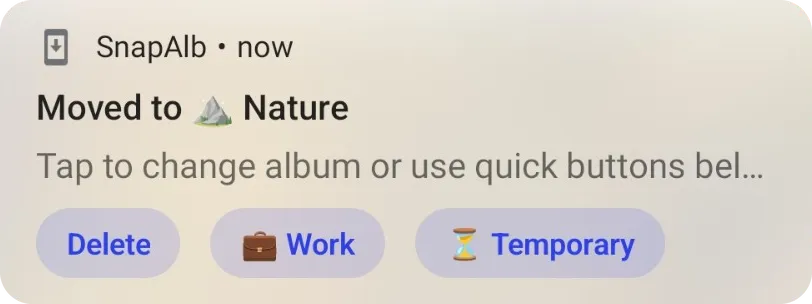
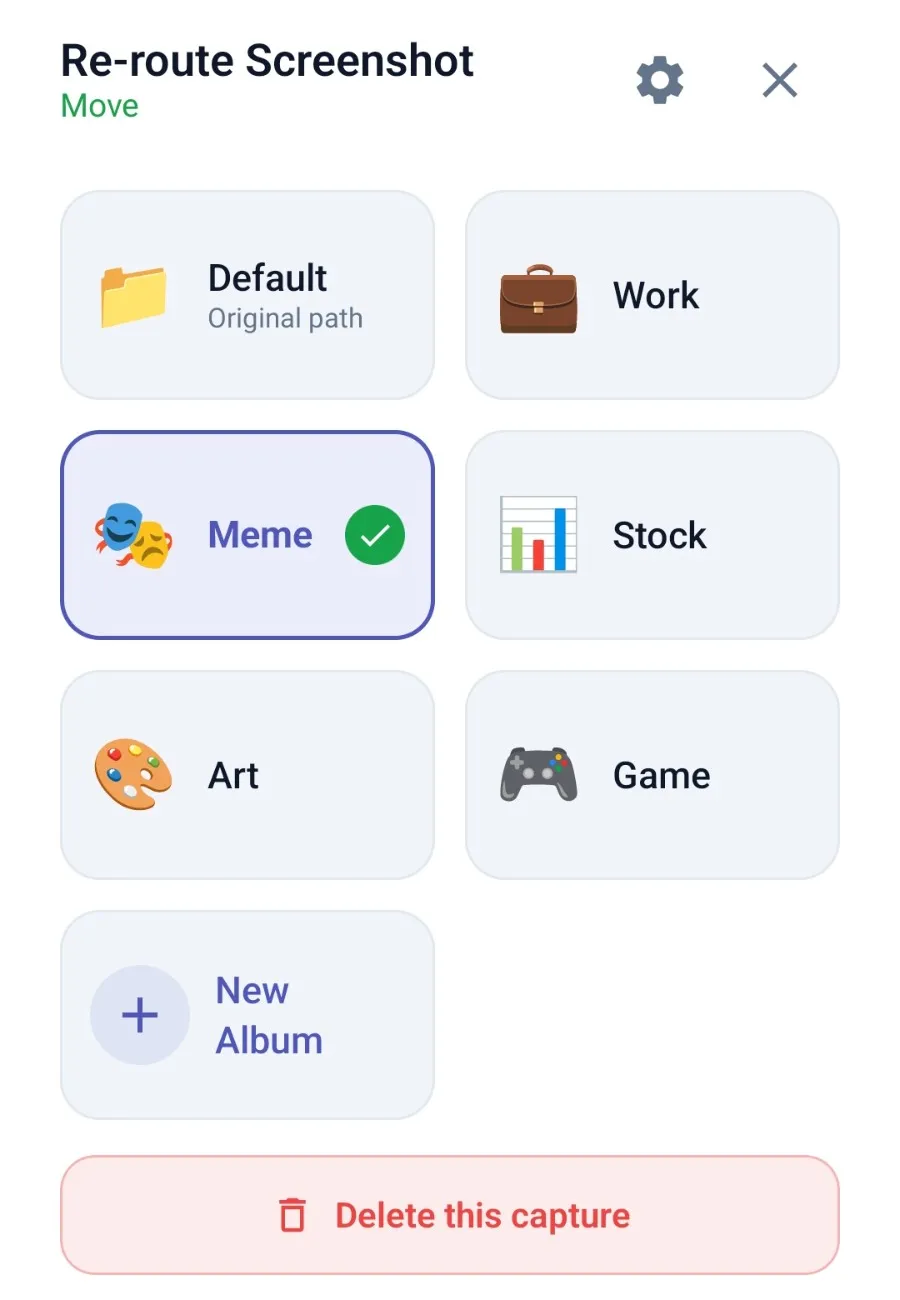
Forgot to switch albums first? Fix it from that notification: tap a quick button to move the screenshot to a pinned album, or tap the notification to pick any album or delete it.
Pros: nothing to move later, and as many topics as you need.
Cons: you install an extra app and give it access to your photos. On some brands (such as Xiaomi and OPPO) you also have to turn off battery optimization for it, or the system may stop it. The free version includes 3 albums.
Tip: keep one-time screenshots in a “Temporary” album
Lots of screenshots are only useful for a moment: a one-time code, a tracking number, something you sent to a friend. Mixed in with screenshots you want to keep, they’re a pain to clean up later.
Create an album called Temporary and put those screenshots there (works with way 1 or way 3). At the end of the month, delete the whole album at once without worrying about losing anything important.
Which way should you use?
| Way | Several albums | Manual moving | Catch |
|---|---|---|---|
| Move in your gallery | Yes | Every time | Slow if you take many |
| Change save folder | No (one folder) | No | Only some Samsung phones |
| App that sorts as you snap | Yes | No | Extra app with photo access |
If you rarely take screenshots, way 1 is enough. If you’re on Samsung and just want screenshots apart from your photos, try way 2. If you take screenshots every day and want them split by topic, way 3 saves the most time.
FAQ
Where are screenshots saved on Android?
In a Screenshots folder, inside DCIM on many phones (such as Samsung and Xiaomi) or inside Pictures on others (such as Pixel). Your gallery app shows it as an album called Screenshots.
Can I send different screenshots to different albums automatically?
Not with the phone's own settings. At most you can choose one folder for all screenshots. To split them by topic, like receipts, work and shopping, you either move them by hand later or use an app that sorts them as you take them.
Will moving screenshots to another album remove them from Google Photos?
No. The files stay on your phone, just in a different folder. If you back up only selected device folders, check that the new folder is included in backup.